
Setup and guide
How to use Baron Buff
Baron Buff is a League of Legends companion app: a draft helper, builds and runes import, an in-game overlay, an AI coach for post-game reports and a progress tracker. Set it up once, then follow the guide in the order you play.

Get started in five steps
Set it up once, then keep Baron Buff running while you play.
- Step 1Install from Microsoft Store
On the Windows PC you play League on, install Baron Buff and open it. It runs as a small icon next to the clock.
- Step 2Open the League client
Start League of Legends and sign in as usual. Baron Buff detects the client on its own.
- Step 3Your browser opens
As soon as the client is detected, Baron Buff opens a browser tab with your live session. Keep it open while you play.
- Step 4Create your account
Sign in or create an account to save pools, reports and progress. If you like, set your champion pool and overlay preferences in your profile.
- Step 5Play
Queue up. Ban and pick advice, runes and builds, the overlay and the post-game report follow your game.
The complete guide
Each part of Baron Buff in the order you meet it, from the connector icon to your progress over time.
Install the connector and read its icon
The connector is the small Windows app that reads your League client and sends the state of your game to Baron Buff. Nothing is injected into the game, and it never controls in-game actions.
What to do
- Install Baron Buff from Microsoft Store and open it. If Windows asks, allow it to start with Windows so it is ready before League.
- Open League of Legends. When the client is detected, Baron Buff opens your browser at the live session. If no tab opens, go to baronbuff.com/tool; while League is open, that page joins the session on its own.
- Look at the icon next to the clock: green means everything is connected. Right-click it for the status lines, Open Baron Buff and the overlay options.
Where the icon lives
The connector shows as a small Baron Buff icon in the Windows taskbar, in the group of icons next to the clock. If Windows hides it, select the small arrow (^) at the left of that group to show it. Right-click the icon to open its menu.
What the icon colours mean
 Green: connected
League and Baron Buff are both linked. You are ready to queue.
 Blue: waiting for League
Baron Buff is online but the League client is closed or still starting. Open League.
 Gold: no connection to Baron Buff
League is detected, but the connector cannot reach Baron Buff. Check your internet; it retries on its own.
 Red: not connected
Neither League nor Baron Buff is reachable. Check that League is open and that you are online, then right-click and choose Retry connection.
 Grey: starting
Shown briefly while the connector starts, before it has checked anything.
The right-click menu
The first three lines show the League client, the Baron Buff server and your pairing code. Reconnection is automatic. The example below shows an available update; that action appears only when Microsoft Store reports a new version.
Keep the connector running while you play. Quit stops the overlay and live updates until you open Baron Buff again.
Create your account and set it up
The browser tab is Baron Buff itself: the draft helper, your profile and your reports. An account keeps your champion pools, reports and preferences, so they are there in every session and on your phone.
What to do
- In the browser tab, select Create Account or Sign In. You can use your email address or your Google account.
- Open your profile. Champion Pools holds your champion pools, Preferences holds auto-import, the coaching detail and the overlay, and Progress holds your reports.
- Pick your language from the menu in the top bar. The connector's tray menu follows your Windows language instead.
Free includes one saved pool, manual imports and one coaching trial game per rolling seven days. Premium adds up to 20 pools, auto-imports and ongoing coaching.
Keep your own champions in the draft
A strong recommendation is more useful when you can play the champion. Set your pool before the queue starts and the draft helper ranks your champions first.
What to do
- Open your profile, then Champion Pools. Choose a role and select Create Champion Pool.
- Name the pool, select your champions and choose Save. Use the search box to find a champion, or Recommended to see those above the ranked-ready mastery mark.
- Choose Set as active for the pool you want. In champion select, turn on My Pool to filter recommendations. Turn it off to see the wider list.
One pool can be active per role. Without a pool for that role, Baron Buff uses your mastery as a fallback. Free includes one saved pool; Premium supports up to 20.
Read the cards before you lock in
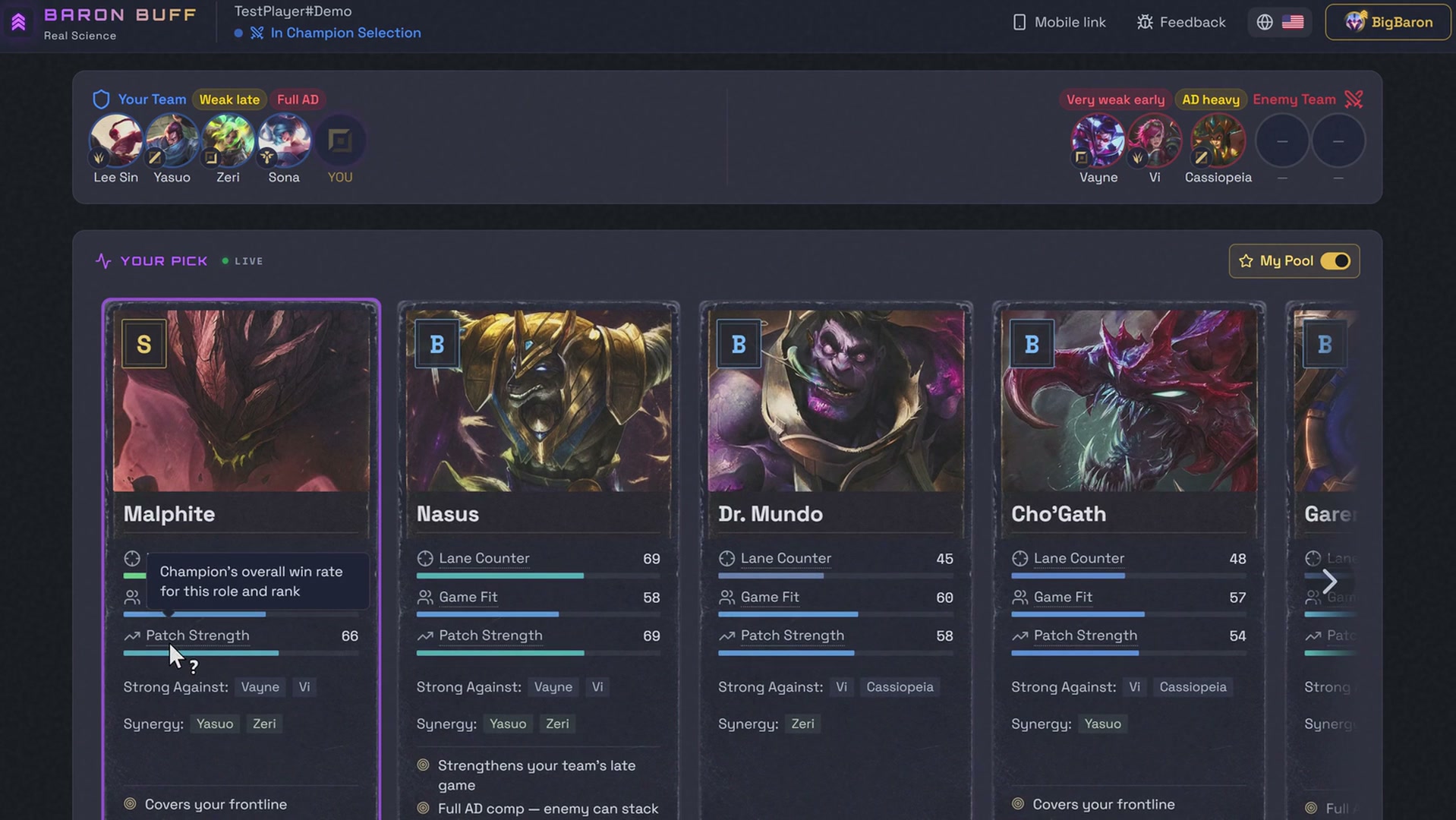
Recommendations change as picks come in. Start with the overall ranking, then check why a champion fits this draft.
What to do
- Read the ban threats first. Once picking starts, compare the recommended champions for your role.
- Use the sort control to compare the lane matchup, team fit or patch strength. A score without enough draft context stays unavailable.
- Select a card to choose that champion in the League client. Confirm the pick or ban yourself in League.
How to read it
The letter grade summarizes the recommendation. The bars explain its strengths; a score of 70 does not mean a 70% chance to win.
Lane Counter describes the lane matchup. Game Fit combines performance with allies and against enemies outside your lane. Patch Strength describes the champion's current statistical strength.
Import your runes, spells and builds
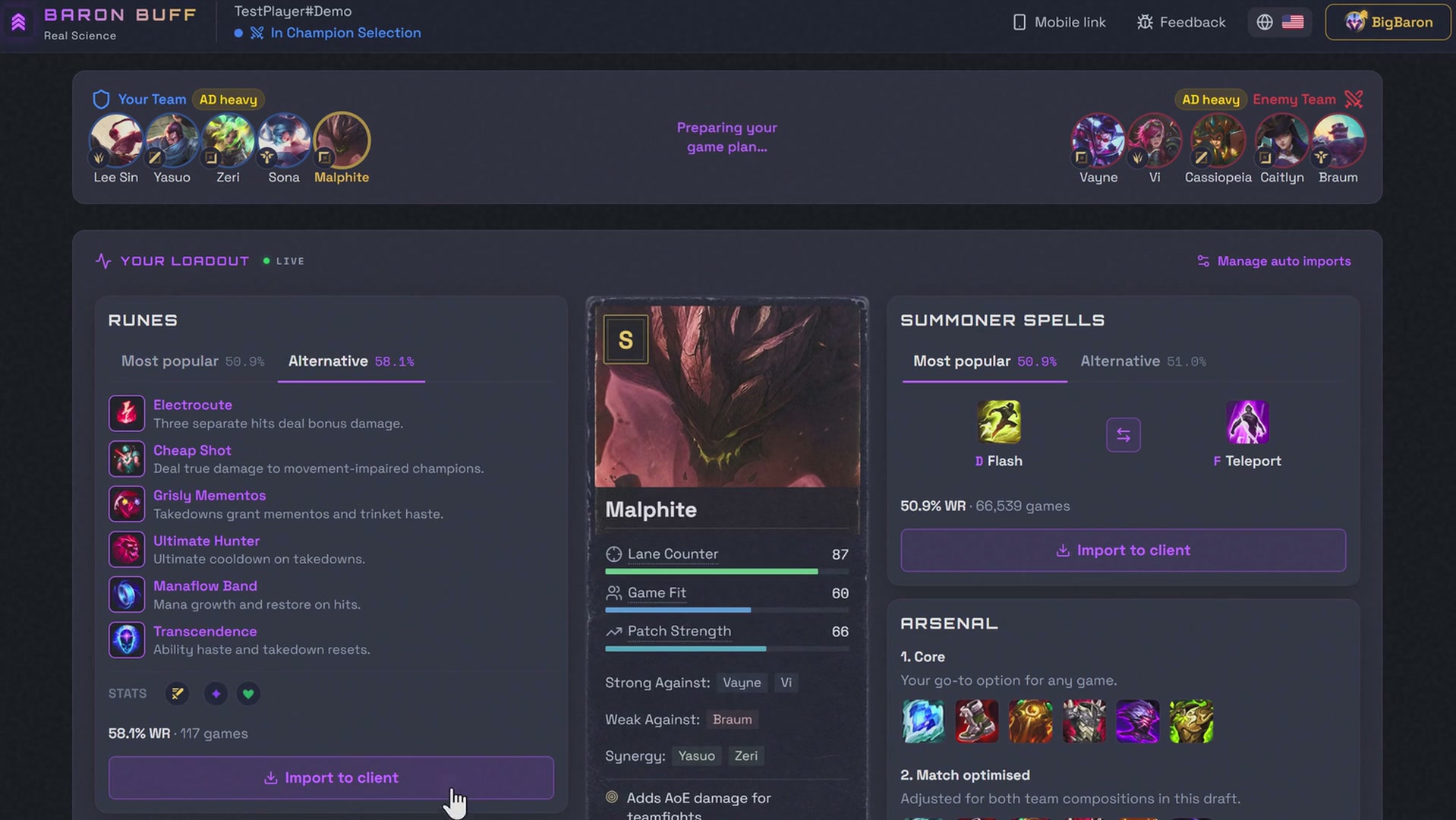
After you lock your champion, the loadout cards appear beside your pick. One click sends each of them to the League client.
What to do
- Choose a rune page and select its import button. Compare the popular page with the alternative offered for this matchup or champion.
- Choose your summoner spells, check their D/F order, then import. The swap control changes the order before you send it.
- In Arsenal, select Import builds to send both builds to League. Core is your champion-and-role baseline; Match optimised accounts for the draft.
Manual imports are available on Free. Premium auto-imports live under Preferences and apply from the next champion lock. If rune import needs a free page slot, free one in League and retry.
Put the live draft on your phone
Use your phone as a second screen for recommendations and the coaching available for your game. It opens in your mobile browser; no phone app is required.
What to do
- On your PC, open the tool with the connector running and League connected. In the top bar, select Mobile link (the phone icon).
- Scan the QR code with your phone's camera and open the link.
- Sign in on your phone with the same Baron Buff account you use on the PC. The link opens the same live session in the language selected on the PC.
- Keep the connector running on your PC and the page open on your phone, with both devices online. Follow the recommendations as picks change.
If Mobile link is missing, check the tool on your PC: the button appears once a connector session is available and is hidden on phones. If the phone link expires, reconnect on the PC, then tap Retry Connection on your phone or scan a new QR code.
Follow the plan during the game
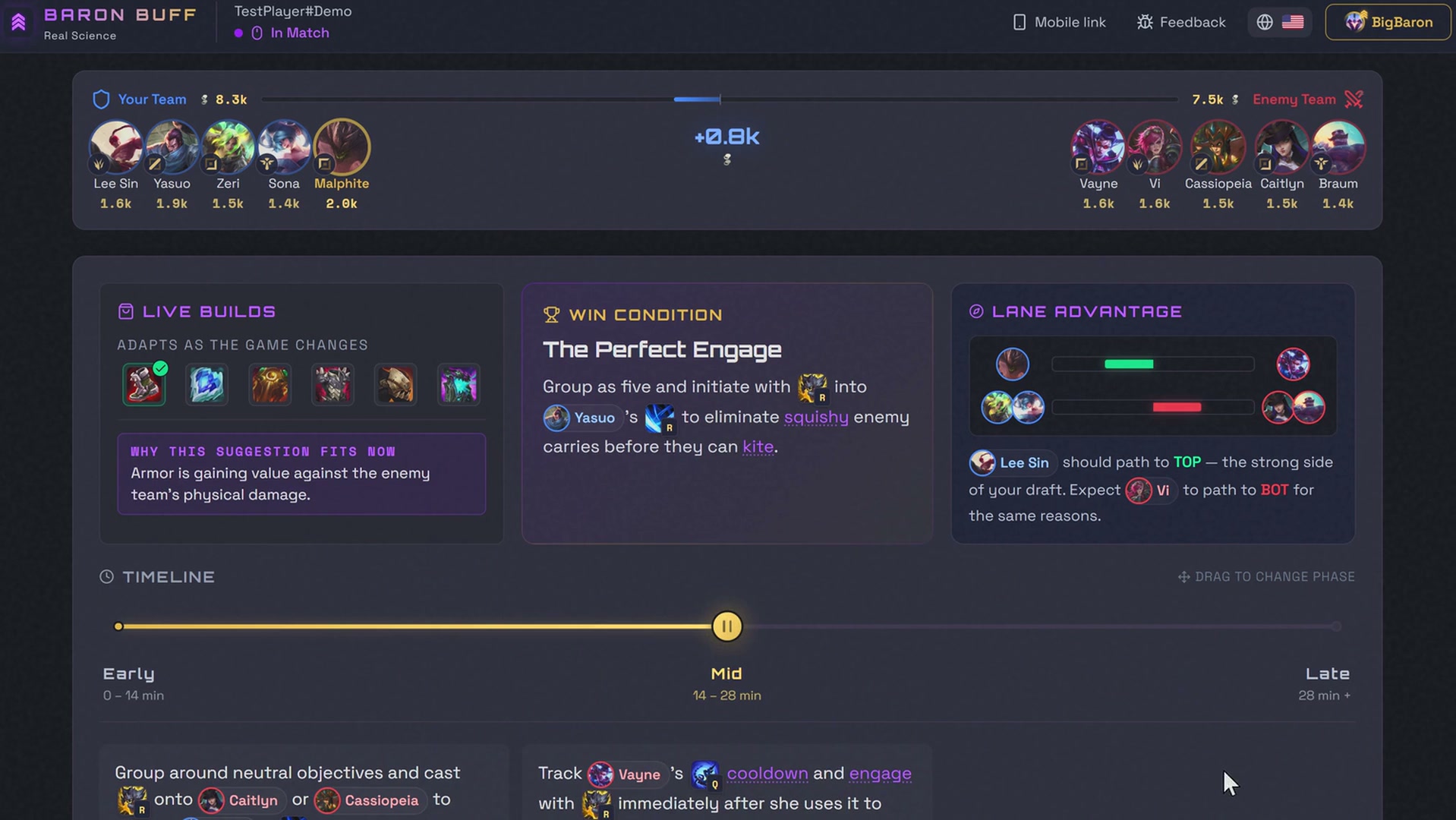
Two views carry you through the game. The overlay draws your win condition, next item and gold difference over League. The browser tab keeps the full plan: live builds, win condition, lane advantage and tips for each phase.
What to do
- In League, open the video settings and choose Borderless or Windowed mode. Exclusive Full Screen prevents the overlay from appearing.
- Open Preferences → In-game overlay in your Baron Buff profile. Turn the overlay on and choose which sections to display.
- Set the position, text size and transparency. Changes save as you make them. The same options are in the connector's right-click menu under In-game overlay.

- Content
- Win Condition
- Next item
- Playstyle tips
- Team gold diff
- Position
- Top left
- Right side
- Text size
- Small
- Medium
- Large
- Transparency
- Opaque
- Standard
- Transparent
Tap Alt+B to cycle through compact, expanded and hidden. Hold Alt+B to peek at the expanded view, then release to return.
How to read it
Compact shows your win condition, next item and team gold difference. Expanded adds the phase tips and gold breakdown by role, for the sections you have enabled.
The next item follows your current build plan. Live gold differences are estimates based on visible items, not each player's exact unspent gold.
The overlay shows the coaching available for that match. Signed-in Free accounts get one coaching trial game per rolling seven days; Premium provides ongoing coaching.
Generate a report, then find one thing to change
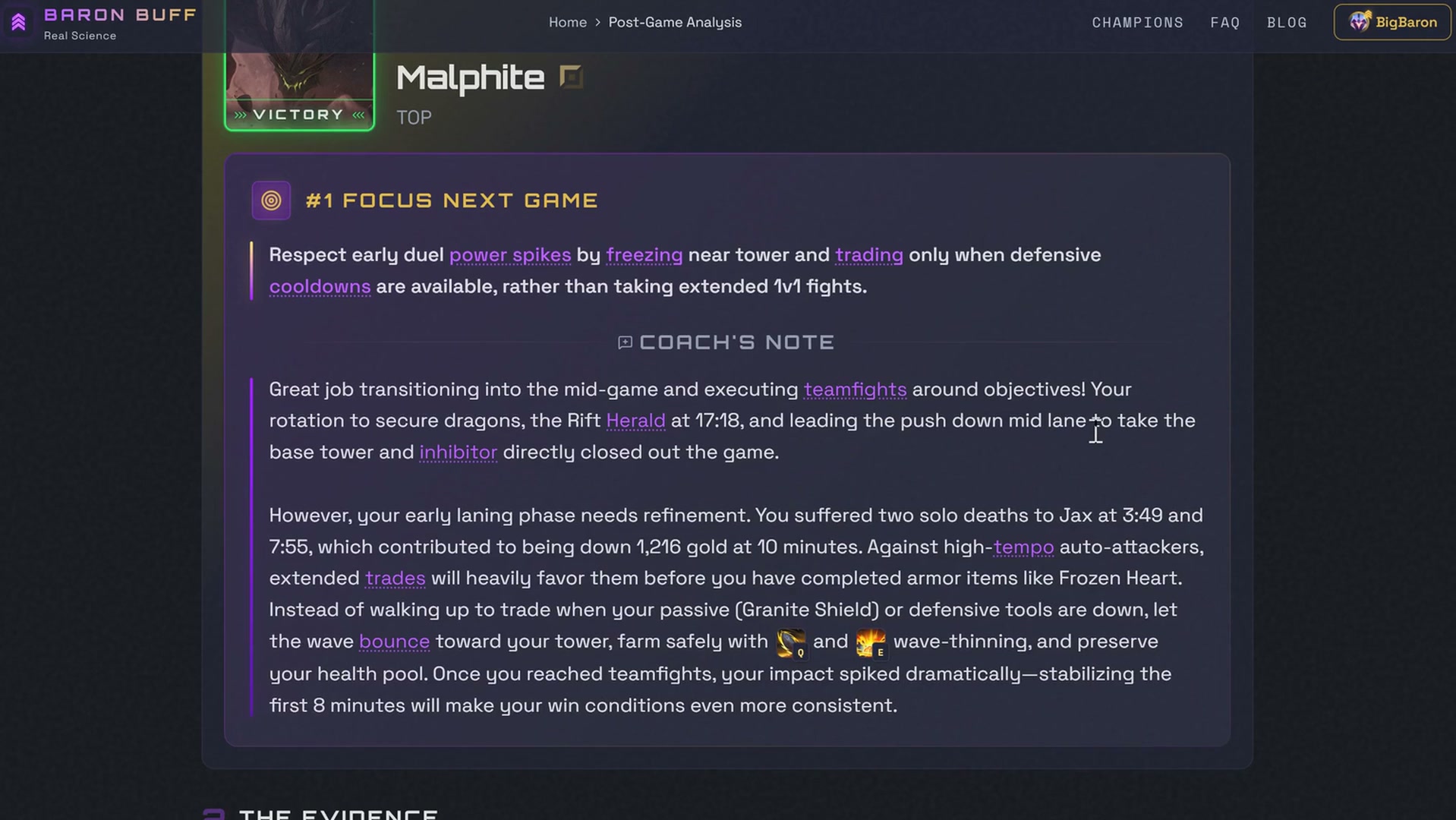
Play with the connector running and your League account linked. The AI coach builds the report from match data; you do not need to upload a video.
What to do
- After a supported match, stay on the post-game screen. Match data is prepared automatically, and a new Free account’s first report starts automatically. For later reports, select Analyze This Game; access or weekly trial availability is checked when you request it.
- Wait for the report to finish. It opens in a new tab when your browser permits it; otherwise, use the report link shown on the tool.
- To return later or analyze a recorded match, open Progress → Match History in your profile, expand the match and choose Generate Post-Game Analysis or the saved analysis.
How to read it
Start with The Verdict: your next-game focus and the coach's note. Pick one decision to practice in the next match.
Use The Evidence to check the diagnosis: compare the performance metrics, lane gold and team gold chart, then explore the minimap replay. The replay reconstructs match events; it is not a video recording.
Look for a pattern across games
Progress tracks match results and lane win rate automatically. Reports add coaching comparisons. Check which League account is selected before reading the results.
What to do
- Choose the champion and available sample size in the learning panel. Set the role and benchmark rank for the comparison you want to make.
- Read your next-game focus alongside the overall chart and early, mid and late-game metrics. Return after more reports to see whether the same issue keeps appearing.
Benchmark averages are context, not a verdict on a single game. A small sample can move sharply after one match.
Troubleshooting
Quick answers when something does not look right.
The browser did not open, or I closed the tab. How do I get back?
Open baronbuff.com/tool in a browser on the same PC. While the League client is open and the connector is running, the page finds the connector and redirects you to the correct live session on its own. You can also right-click the Baron Buff icon next to the clock and choose Open Baron Buff.
The tool does not see my game. What should I check?
Open the connector and the League client on the same PC, then look at the icon next to the clock. Blue means League is not detected yet; gold means no connection to Baron Buff; red means neither. Follow any reconnect or update prompt in the tool. If you use more than one PC, select the connector for the machine you are playing on.
Why does Alt+B show no overlay?
Check that League is in Borderless or Windowed mode and is the foreground window. In Preferences, turn on the overlay and at least one content section. Keep the connector running. If the overlay says the plan is preparing or unavailable, it has no ready coaching to show yet.
The phone link expired or shows nothing
Reconnect on the PC first: the connector must be running and League open. Then tap Retry Connection on your phone, or scan a new QR code from the Mobile link button. Both devices need to be online, and the phone uses the same Baron Buff account as the PC.
Where is my report?
Check Match History under Progress for the right League account. A queued report may still be processing. If generation failed while Riot was processing the match, retry from history after a few minutes. A blocked popup does not delete the report; use the direct report link.
Do all game modes have the same features?
No. Draft coaching, in-game coaching and post-game reports have different supported modes. ARAM and Arena have their own browser guides but no post-game analysis. Custom games do not support post-game reports. The tool shows the features available for the current mode.